Free & open source
Out of office.
Everywhere at once.
Pick your leave days once. OOO Scheduler sets the auto-reply and the calendar block on every Microsoft 365 account you work in: your employer and each of your clients.
macOS · Windows · Linux
01 · Accounts
Multiple mailboxes.
One click.
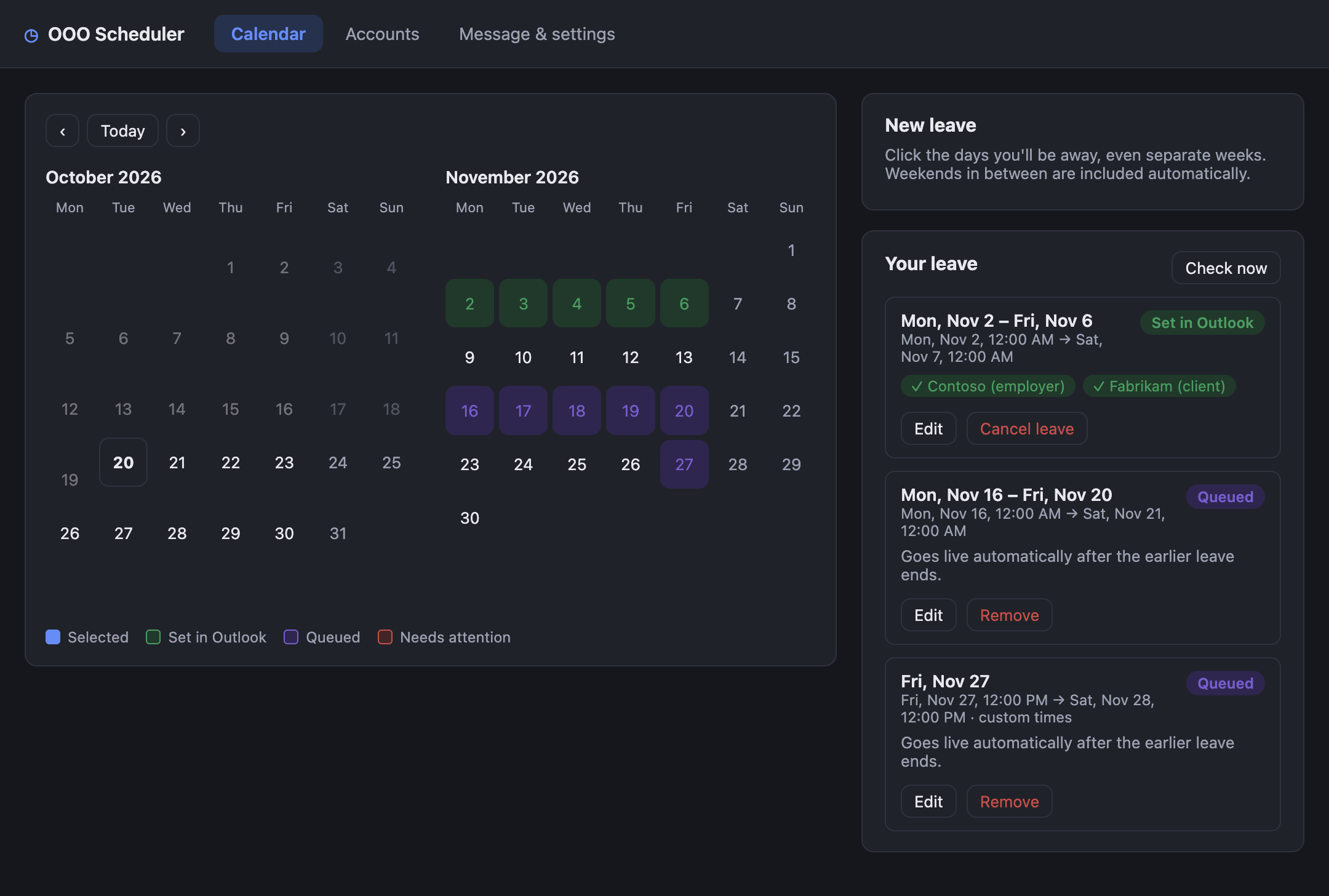
Contractors and consultants live in more than one tenant. Connect your employer's account and every client account, then apply leave to all of them together. Pause a finished contract with one switch.
- Signs in through each company's own SSO: Okta, Microsoft Entra and others
- One default message, with an optional custom message per account
- Test connection shows exactly what each tenant allows
02 · Calendar
Separate weeks?
Queued for you.
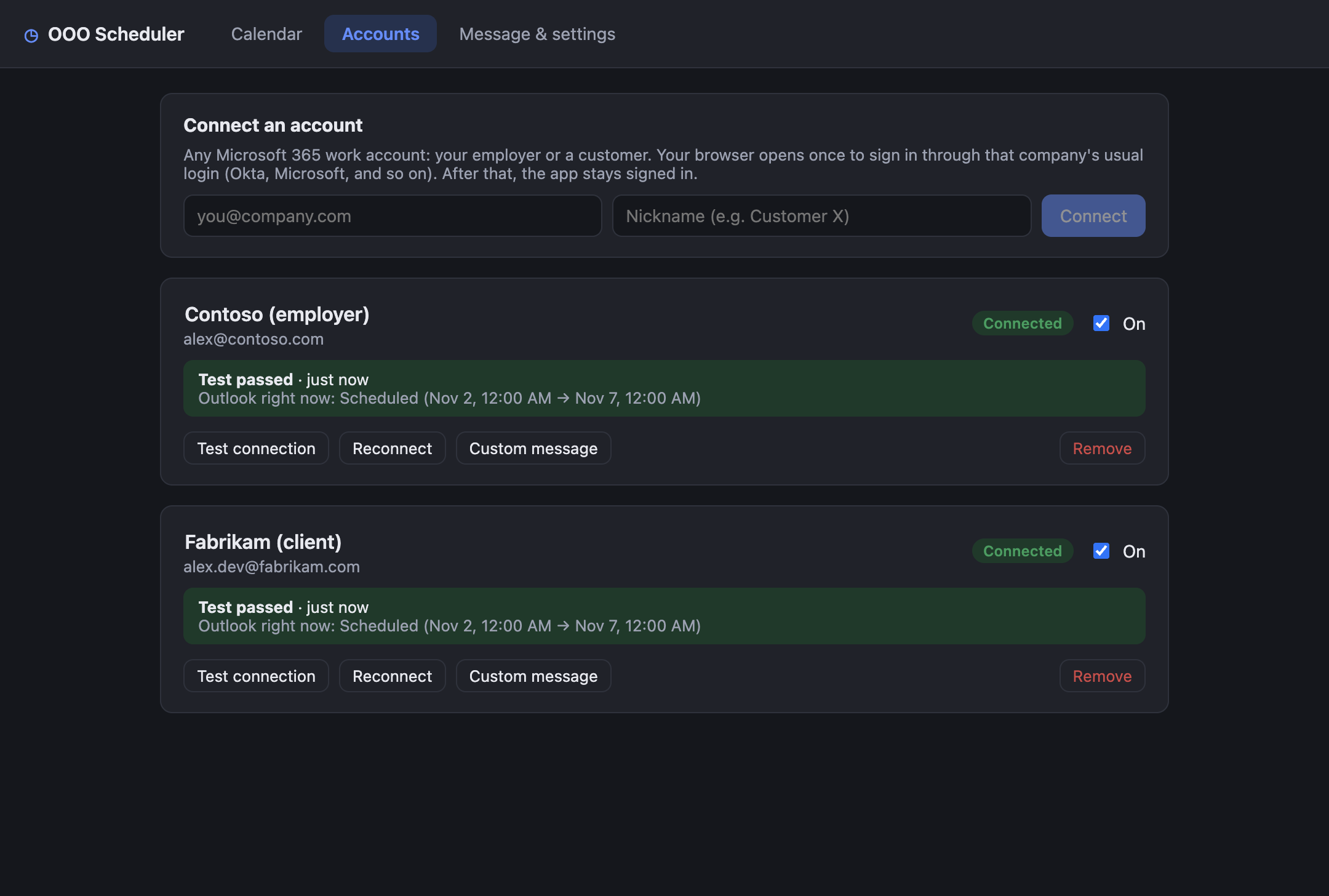
Outlook can hold only one scheduled out-of-office period. Pick days across different weeks anyway: the first stretch goes live right away, and the rest are applied automatically from the menu bar as each one ends.
- Weekends between leave days are joined automatically
- 12:00 AM to 12:00 AM by default, with optional custom times
- An Out of office block on your calendar, kept for past leave
03 · Message
Write it once.
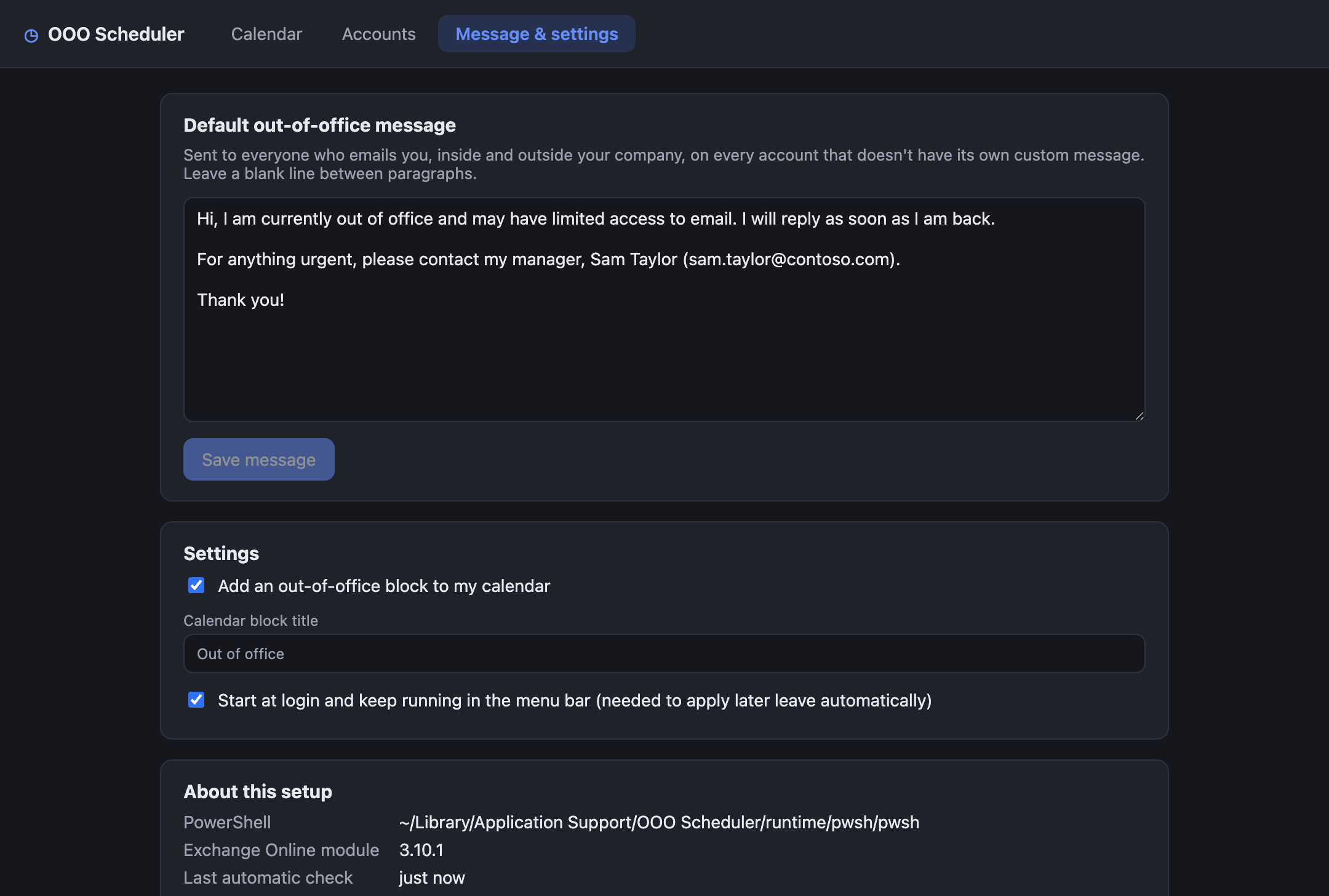
One reply for everyone inside and outside your company, saved in the app and reused every time. Change it later, and any leave already set in Outlook is updated too.
- Plain text in, clean Outlook formatting out
- Choose the title of the calendar block
- Starts at login and stays quietly in the menu bar
How it works
Built for locked-down tenants.
Many companies block third-party Microsoft Graph apps. OOO Scheduler uses the supported Exchange Online PowerShell route instead, which only changes your own mailbox's automatic replies.
-
1
Sign in once per account
Your browser opens that company's normal login. The session is stored encrypted in your OS keychain.
-
2
Pick days, press Apply
Days are grouped into periods. The first is set on every account at once; the rest wait in a queue.
-
3
It handles the rest
When a period ends, the next one is applied from the menu bar, and you get a notification if anything needs you.
Download
Get OOO Scheduler.
Latest release on GitHub
Builds aren't code-signed yet. On macOS, right-click the app and choose Open the first time; on Windows, choose More info → Run anyway.
FAQ
Questions.
Which accounts does it work with?
Microsoft 365 work and school mailboxes on Exchange Online. Gmail and on-premises Exchange aren't supported. Each company decides whether Exchange Online PowerShell is allowed; Test connection tells you straight away.
Does my data go anywhere?
No. The app talks directly to Microsoft from your computer. There's no server, account or analytics. Sign-in tokens are encrypted by your operating system: Keychain, DPAPI or libsecret. This website counts anonymous page views with Cloudflare Web Analytics, without cookies; the app itself collects nothing.
Why does macOS ask about "OOO Scheduler Safe Storage"?
After an update, macOS checks that the new version may read the encrypted sign-ins. Click Always Allow. Unsigned builds get a new signature each version, so the prompt can come back after updates.
What happens if I cancel leave?
The auto-reply is turned off. If another leave is queued, it's applied straight away. Exchange PowerShell can't delete calendar items, so if a calendar block is left over, the app gives you a one-click link to remove it in Outlook.
Does my computer need to be on?
Only between separate stretches of leave. Outlook holds one scheduled period, so the app applies the next one when the previous ends, as long as it is running at some point in between.